



 By
Imagine asking an AI assistant to open your browser, find information, organise files and update a spreadsheet without manually performing every step. That’s the idea behind Claude Computer Use, Anthropic’s feature that allows Claude to interact directly with your desktop.
Instead of simply explaining how to complete a task, Claude can use your computer’s interface to click buttons, type information, navigate applications and perform actions on your behalf. This opens up new possibilities for people who spend hours switching between different software tools.
But how does it actually work? Can Claude control your mouse and keyboard? And what do you need to enable it?
This guide explains how to use Claude Computer Use, from installation and setup to practical automation examples, limitations and security considerations.
What Is Claude Computer Use?
Claude Computer Use is an AI-powered capability that lets Anthropic’s Claude assistant interact with a computer through its visual interface. It can interpret screenshots and perform actions such as clicking, typing, scrolling and navigating between applications.
Anthropic introduced this capability on March 23, 2026, as a research preview for Claude Cowork and Claude Code. It was designed to help Claude complete tasks that cannot always be handled through conventional integrations.
For example, suppose you want to collect information from a desktop application and transfer it into a spreadsheet. A traditional chatbot might explain the process or generate a script. With Computer Use, Claude can attempt to interact with the applications directly.
It can also:
- Open files and navigate desktop folders.
- Interact with websites and browser interfaces.
- Enter information into supported applications.
- Navigate development environments.
- Complete repetitive visual workflows.
- Work with information across different desktop applications.
An important distinction is that Claude does not automatically use screen control for every request. It prioritises available connectors and other tools when they can complete the task more efficiently. Direct computer interaction is used when those options are insufficient. Claude by Anthropic+1
How to Use Claude Computer Use: Step-by-Step Setup
Before getting started, check whether your subscription and operating system support the feature.
As of November 2026, Anthropic documents Computer Use as a beta capability for Pro, Max and Ultra subscribers. It works through Claude Desktop on Windows and macOS, within Cowork and Claude Code.
Step 1: Download Claude Desktop
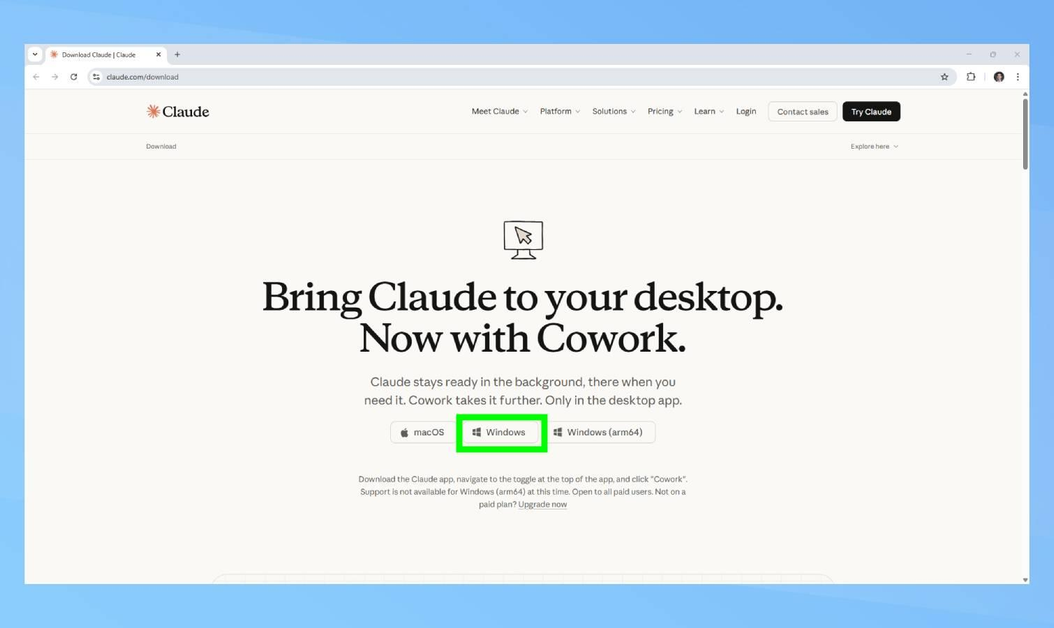
First, install the official Claude Desktop application.
- Visit the official Claude download page.
- Choose the Windows or macOS version.
- Download the installation file.
- Complete the installation.
- Open Claude Desktop and sign in to your account.
Make sure you install the latest version because feature availability and interface settings can change.
Important: Having access to Claude’s website does not automatically give you access to desktop Computer Use. You need the compatible desktop application.
Step 2: Enable Computer Use in Settings
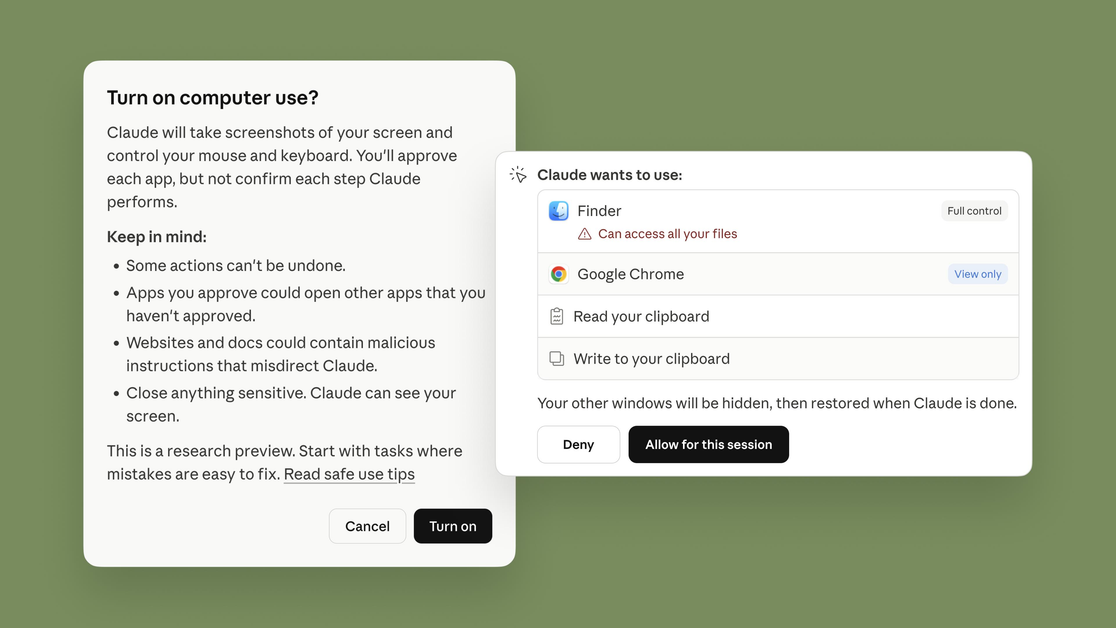
Once the application is installed, enable the computer interaction capability.
Follow these steps:
- Open Claude Desktop.
- Navigate to Settings.
- Select Capabilities.
- Look for Computer Use.
- Turn on the Enable computer use option.
If you cannot find this option under Capabilities, check Settings → System → This computer.
The exact navigation may vary between application versions. If the setting is missing, check your subscription eligibility and update Claude Desktop before troubleshooting further. Claude Help Center
Step 3: Open Claude Cowork or Claude Code
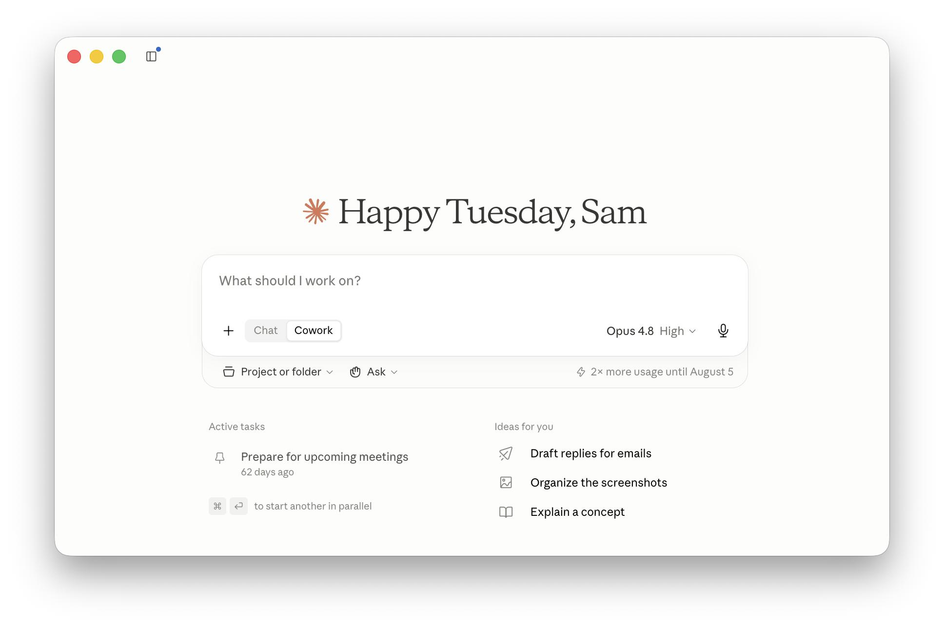
After enabling Computer Use, open the environment in which you want to work.
Claude provides two relevant options:
Claude Cowork: Designed for everyday productivity, research, document creation, file organisation and business workflows.
Claude Code: Primarily designed for developers who work with programming projects, development environments and software tools.
Choose the environment according to your task and start a new session.
Step 4: Give Claude a Clear Task
Now describe what you want Claude to accomplish.
Avoid vague instructions such as “organise my computer” or “do my work.” Instead, specify the application, expected result and actions Claude should avoid.
For example:
Open my Downloads folder and identify all image files. Create separate folders for JPG, PNG and WebP files. Organise the files into the appropriate folders. Do not delete, rename or overwrite anything. Show me the proposed changes before proceeding.
You can also ask Claude to work with an image-editing application:
Open my image editing software, select the image on my Desktop and resize it to 1200 × 800 pixels. Export the edited version into a new folder. Preserve the original image.
Clear instructions make it easier to monitor the task and identify mistakes.
Step 5: Allow Claude to Interact With Your Applications
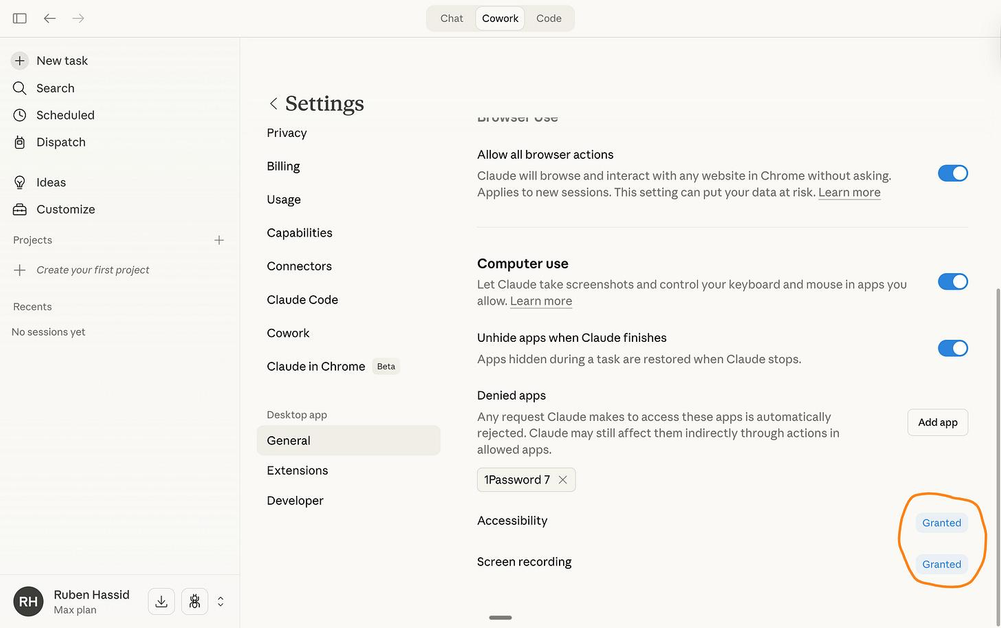
When Claude needs to interact with desktop applications, the feature uses the access and application controls available in your setup.
Review the applications Claude will interact with and make sure you understand the access being granted. Do not assume that enabling Computer Use means every action is harmless or automatically reversible.
Start with applications that contain non-sensitive information.
Step 6: Monitor the Computer Interaction
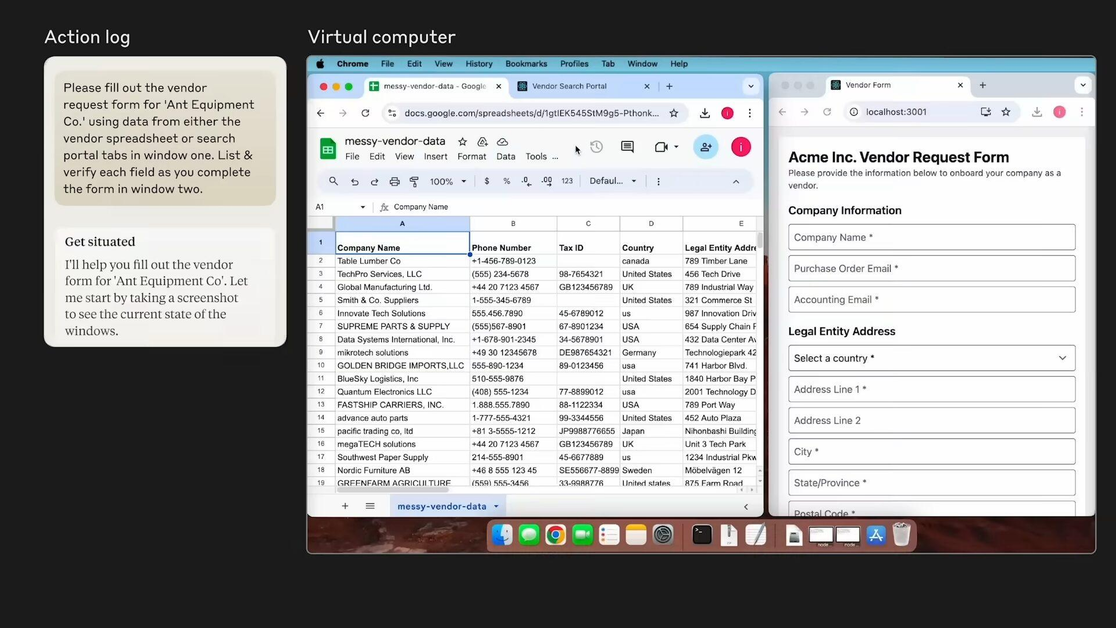
Once Claude starts working, it can interpret the visible screen and perform actions through the interface.
Depending on the task, these may include:
- Moving the cursor.
- Clicking interface elements.
- Typing information.
- Scrolling through pages.
- Opening menus and files.
- Switching between application windows.
Keep the desktop active while the task is running. Your computer needs to remain awake, and Claude Desktop must stay open.
If Claude makes an incorrect selection or starts doing something unexpected, stop the task and correct the instruction.
Step 7: Check the Completed Work
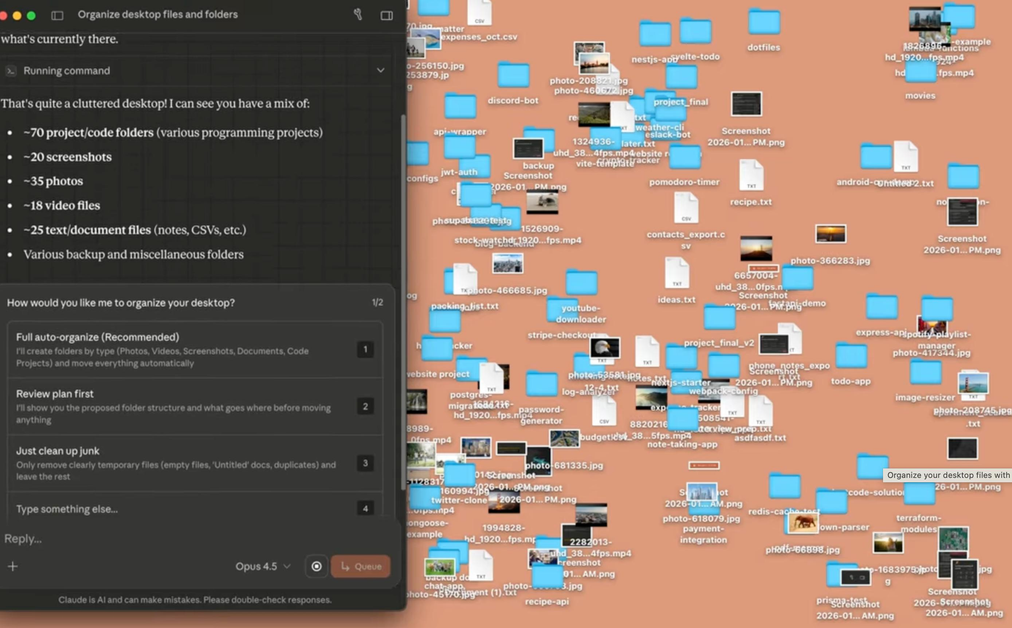
Once Claude finishes, inspect the result.
For example, if you asked it to organise files, check the folders and confirm that the files were moved correctly.
If it updated a spreadsheet, compare the new entries against the original information. If it edited an image, inspect the exported file and confirm its dimensions.
Never treat an AI-generated completion message as proof that every action was successful. Verify important changes yourself.
5 Practical Ways to Use Claude Computer Use
The usefulness of Computer Use depends largely on the applications you use and the tasks you want to automate.
Here are five practical examples.
1. Organise Files and Documents
You can use Claude to help organise folders containing documents, images and other files.
For instance, ask it to identify file types, create folders and move files into appropriate locations.
This can be useful when managing a large Downloads folder or organising project assets.
2. Automate Repetitive Spreadsheet Tasks
Claude can interact with spreadsheet applications to enter information, organise data and perform repetitive operations.
For example, you could ask it to transfer product names, prices and quantities from one document into an inventory spreadsheet.
Always check formulas, numerical values and destination columns before relying on the results.
3. Work With Design Applications
Graphic designers can explore using Computer Use for repetitive interface operations.
Examples include resizing images, navigating editing menus and exporting assets.
However, it should not be treated as a replacement for professional design judgement. Typography, alignment, colour accuracy and visual consistency still require inspection.
4. Research Websites and Collect Information
Claude can navigate browser interfaces and collect publicly available information.
You could ask it to compare competitor product pages, record prices and organise findings into a report.
For larger research projects, dedicated integrations or automated data collection tools may be more efficient.
5. Assist With Software Development
Developers can use Claude Code and Computer Use to interact with development applications.
It can help navigate interfaces, work with development tools and perform certain testing workflows.
However, always review code changes and test results before deploying anything to a production environment.
Claude Computer Use vs Traditional AI Chatbots
Traditional AI chatbots primarily generate information, instructions and content. Computer Use adds the ability to interact with desktop software.
| Capability | Traditional chatbot | Claude Computer Use |
|---|---|---|
| Answer questions | Yes | Yes |
| Generate content | Yes | Yes |
| Explain software operations | Yes | Yes |
| Click desktop buttons | No | Yes |
| Type into applications | No | Yes |
| Navigate visual interfaces | No | Yes |
| Automate desktop workflows | Limited | Yes |
| Work without supervision | Not applicable | Not recommended |
This does not mean every traditional chatbot is incapable of automation. Other platforms offer integrations, APIs and agent-based workflows.
The main difference is Claude’s ability to use the visual desktop interface when a more direct tool is unavailable.
Is Claude Computer Use Safe?
Giving an AI assistant access to your desktop introduces security considerations that you should not ignore.
Computer Use interacts directly with your applications and visible screen. Anthropic warns that this capability has different security properties from ordinary file operations and code execution, and it does not provide a separate sandbox between Claude and the desktop interface.
One particular concern is prompt injection. A malicious website or document may contain instructions intended to manipulate an AI assistant into performing actions that you never requested.
Anthropic has developed safeguards, but it acknowledges that these protections are not perfect. Claude Help Center+1
To reduce risks:
- Avoid using Computer Use with banking and financial applications.
- Keep confidential documents away from the applications it accesses.
- Do not expose passwords or authentication information.
- Review the actions Claude performs.
- Start with low-risk tasks.
- Avoid allowing unverified changes to important files.
- Stop the task if Claude behaves unexpectedly.
The safest approach is to give Claude access only to the applications necessary for the task.
Limitations You Should Know Before Using Claude Computer Use
Although Computer Use can automate certain workflows, it is not a fully autonomous replacement for your computer.
1. Subscription requirements: Computer Use is currently documented for Pro, Max and Ultra subscribers. General Cowork availability on other plans does not necessarily mean Computer Use is included.
2. Beta status: The feature is still developing, so some workflows may produce unexpected results.
3. Desktop availability: Your computer must remain awake, with Claude Desktop open, for local computer interaction to work.
4. Complex tasks: Multi-step workflows may require additional instructions or another attempt.
5. Speed: Interacting through screenshots, mouse movements and keyboard actions can be slower than using a direct connector.
6. Security risks: Direct interaction with desktop applications requires careful monitoring and appropriate access restrictions. Claude Help Center+1
Can You Use Claude Computer Use From Your Phone?
Claude also offers a feature called Dispatch, which allows eligible users to assign tasks from a mobile device to a connected desktop workflow.
For example, you could send Claude a request from your phone to prepare a report using information stored on your computer.
However, Dispatch and Computer Use are separate capabilities. Dispatch provides the remote task interface, while Computer Use enables direct desktop interaction.
There are also important availability limitations. Dispatch is currently in limited beta for some Pro, Max and Ultra subscribers, and it is not available to new users. For local computer interaction, the desktop must remain awake and Claude Desktop must stay open.
Check the latest official Dispatch documentation for eligibility and setup details. Claude Help Center
Frequently Asked Questions About Claude Computer Use
Is Claude Computer Use free?
No. Anthropic currently documents Computer Use as a beta feature for Pro, Max and Ultra subscribers. Access to Claude’s free chat service does not automatically include this capability.
Does Claude Computer Use work on Windows?
Yes. Computer Use is supported through Claude Desktop on Windows and macOS. Linux desktop support is not currently included in the documented Computer Use availability.
Can Claude control my mouse and keyboard?
Yes. Claude can interact with desktop applications through mouse and keyboard actions, including clicking, typing, scrolling and navigating interfaces.
Can Claude Computer Use edit images?
It can interact with compatible image-editing applications and attempt tasks such as resizing and exporting images. You should inspect the results before using them professionally.
Does Claude Computer Use work when my computer is switched off?
No. Local computer interaction requires your computer to remain awake and Claude Desktop to stay open. Cloud-based Cowork tasks have different operating requirements.
Can I stop Claude while it is using my computer?
Yes. You can stop an ongoing task if you notice an incorrect action or unexpected behaviour.
Is Claude Computer Use available in Claude Code?
Yes. Anthropic documents Computer Use for both Claude Cowork and Claude Code through Claude Desktop.
Final Thoughts
Claude Computer Use changes the way people can interact with AI assistants. Instead of limiting its role to answering questions and generating content, it allows Claude to perform actions through desktop applications.
For professionals, developers and designers, this creates opportunities to reduce repetitive work and simplify everyday workflows.
However, the feature is still in beta. It can make mistakes, take longer than direct integrations and introduce security risks when given access to sensitive applications.
Start with simple tasks, write specific instructions and check the results before trusting the automation with important work. That is the most practical way to explore what Claude Computer Use can accomplish.